
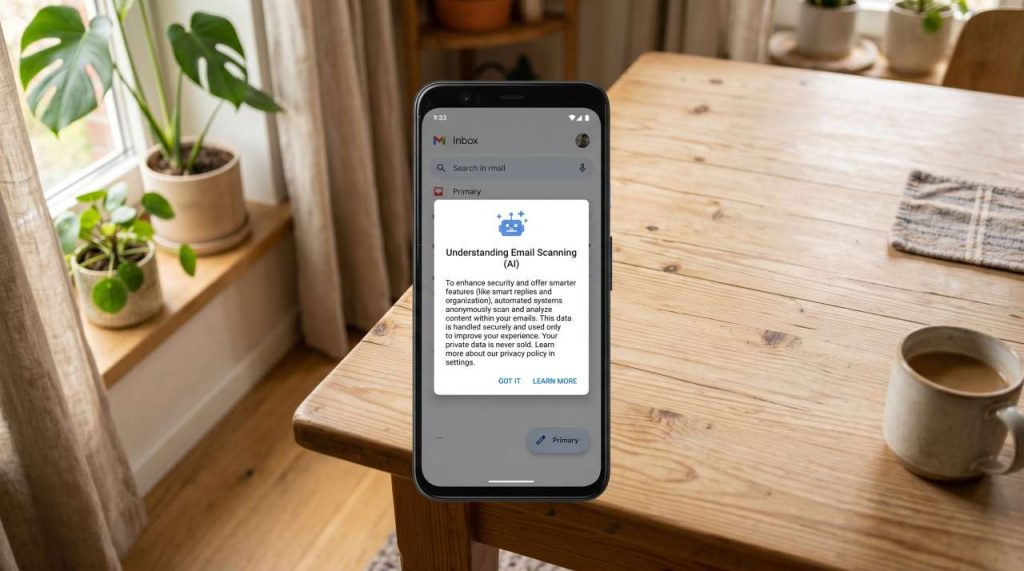
Several recent publications claim that Google is “secretly scanning” Gmail accounts using artificial intelligence. While these assertions require nuance — Google does not use the content of your personal e-mails to train its consumer models like Gemini, and this automation is not new — privacy concerns remain entirely legitimate. By default, many automated processing features are enabled across Gmail, Google Chat, and Google Meet. This guide objectively explains what these algorithms do and how you can manage your privacy settings.
The Technical Reality Behind Automated Data Processing
It is important to clarify that e-mail processing by Google is not human surveillance, but rather local algorithmic indexing. In 2017, Google officially stopped scanning email content to serve targeted advertisements. However, to provide convenience and assistance features, the system automatically analyzes various types of content:
- Financial Documents: The algorithm detects invoices, receipts, or statements to offer payment reminders or summaries.
- Health and Personal Information: Medical appointment confirmations or prescriptions received via email are read by the algorithm to be integrated into related services.
- Attachments: PDF and text files are indexed to allow keyword searches within your inbox.
- Text Communications: Google Chat and Meet histories are analyzed to suggest automated replies (Smart Reply).
- Scheduling Data: Train tickets, flights, or e-mail invitations are automatically extracted to be added to Google Calendar.
The default activation of these options (an opt-out mechanism, where the user must manually disable the feature if they object to it) is a subject of ongoing legal debate and criticism from privacy advocates. For users who prefer to restrict this automated processing, Google offers dedicated configuration settings.
Five Actions to Configure or Disable Gmail’s Smart Features
To restrict algorithmic access to your personal data, you must adjust your Google Account settings across different sections. Here are the technical steps to achieve this.
Action 1: Disable Smart Features on Desktop
Primary management is handled via the desktop version of Gmail. Log into your account on a web browser, click the gear icon (Settings) in the top right corner, then select “See all settings”. In the “General” tab, scroll down to the “Smart features and personalization” section. Uncheck this box, then confirm by clicking “Save Changes” at the bottom of the page.
Action 2: Disable Data Sharing Across Google Products
Directly below the previous setting, you will find the option “Smart features and personalization in other Google products”. This option allows Gmail to share your data with Google Assistant, Maps, or Calendar (for example, to display a flight schedule in Maps). If you wish to maximize email privacy, uncheck this box as well and save your changes.
Action 3: Sync Settings on the Mobile Application
Although desktop modifications generally replicate across the entire account, checking the Gmail mobile app is highly recommended. Open the app, access the main menu (☰ icon), and go to “Settings”. Select your specific email address, scroll down to the “General” section, and ensure that the “Smart features and personalization” box is unchecked.
Action 4: Manage and Purge Activity Linked to the Gemini App
Automated Gmail processing should not be confused with the voluntary use of the Gemini chatbot. If you interact with Gemini, Google retains a history of your queries. In accordance with their terms of service, an anonymized sample of this data may be reviewed by human editors to improve the AI. To delete this data, visit myactivity.google.com/product/gemini, turn off activity retention, and delete your existing history.
Action 5: Evaluate Third-Party Services for Critical Documents
For users with absolute privacy requirements (professional secrets, highly sensitive medical data), the most rigorous solution is to use email services that implement end-to-end encryption, such as Proton Mail or Tuta. On these platforms, even the host provider cannot technically read the email content, thereby eliminating any automated algorithmic processing.
Comparison of Privacy Standards Based on Email Configuration
The table below summarizes the differences in data handling depending on your chosen configuration level:
| Privacy Feature | Gmail (Default Settings) | Gmail (Features Disabled) | Encrypted Email (e.g., Proton Mail) |
|---|---|---|---|
| Data Analysis for Services | Active (sorting, suggestions, calendar) | Disabled (no automated suggestions) | None (Technically impossible) |
| Public AI Model Training | No (excluded by Google’s terms) | No | No |
| Risk of Human Review | Only if voluntarily shared with Gemini | None | None |
| Encryption Level | Standard (TLS in transit, at rest on servers) | Standard (TLS in transit, at rest on servers) | End-to-End Encryption (Zero-Knowledge) |
| Recommended Use | Daily use, convenience-focused | General use with enhanced privacy | Highly sensitive, medical, or legal correspondence |
Conclusion: Adapting Your Data Management Strategy
Google’s automated data processing is designed to deliver convenience features (spam filtering, reminders, smart composing). This is not a secret data breach, but a software architecture choice optimized for user ergonomics. Depending on your personal privacy threshold, three approaches are available:
- The Compromise Approach: Keep the default settings to benefit from Google’s automation tools, accepting the associated algorithmic processing.
- The Defensive Approach: Disable smart features in Gmail’s settings to block contextual indexing while retaining the everyday use of your current address.
- The Clean Break Approach: Migrate your most critical communications to alternative encrypted providers, reserving Gmail for secondary uses (newsletters, e-commerce, public administrations).

Regis Vansnick is a recognized expert with extensive experience at the intersection of technology, business, and innovation. His professional career is marked by a deep understanding of digital transformation and strategic management.


